In 2004, a computer programmer, dissatisfied with the existing products on the market, started an e-commerce store to sell snowboarding equipment.
Two years later, in 2006, the founder launched the platform as Shopify, which is now the leading e-commerce solution for creating your own store. Global giants like Nestlé, PepsiCo, Kraft Heinz, etc., use Shopify for their online presence.
Thousands of solo entrepreneurs worldwide have also trusted this platform to establish their online stores. So, why don’t you?
No need to be an expert. This comprehensive guideline will help you through your Shopify account creation process:
Start Your Shopify Account Creation for a Free Trial
Shopify account creation begins with a free trial. This allows you to explore the platform before choosing and paying for a plan.
Go to Shopify’s website and enter your email address on the sign-up form. You’ll then create a strong password for your account. Shopify may ask for your payment information and offer a $1/month plan for the next three months. You can skip this step for now and explore the admin panel for up to three days.
Next, choose a store name and provide some basic information about your business. Don’t worry—this name can be changed later.
For example, if you haven’t decided on a store name yet or you’re testing an idea, use a temporary store name like ‘my-first-store’ and update it after branding.
Pick a Suitable Plan to Create Your Shopify Account
Currently, Shopify has four different plans. Each plan is designed with features and benefits to suit different business needs and budgets.
As every business is unique, use the breakdown below to understand which plan aligns best with yours.
- Basic: For solo entrepreneurs
- Grow: Best for small teams
- Advanced: For businesses expected to scale up in the near future
- Plus: For complex and large-scale businesses
If you’re just starting, choose the Basic plan. You can upgrade anytime as your store grows.
Register a Custom Domain for Your Brand
Choose a custom domain name for your store; everyone does so (for example, ‘www.yourstore.com’). To add a custom domain, go to Settings > Domain in your Shopify admin.
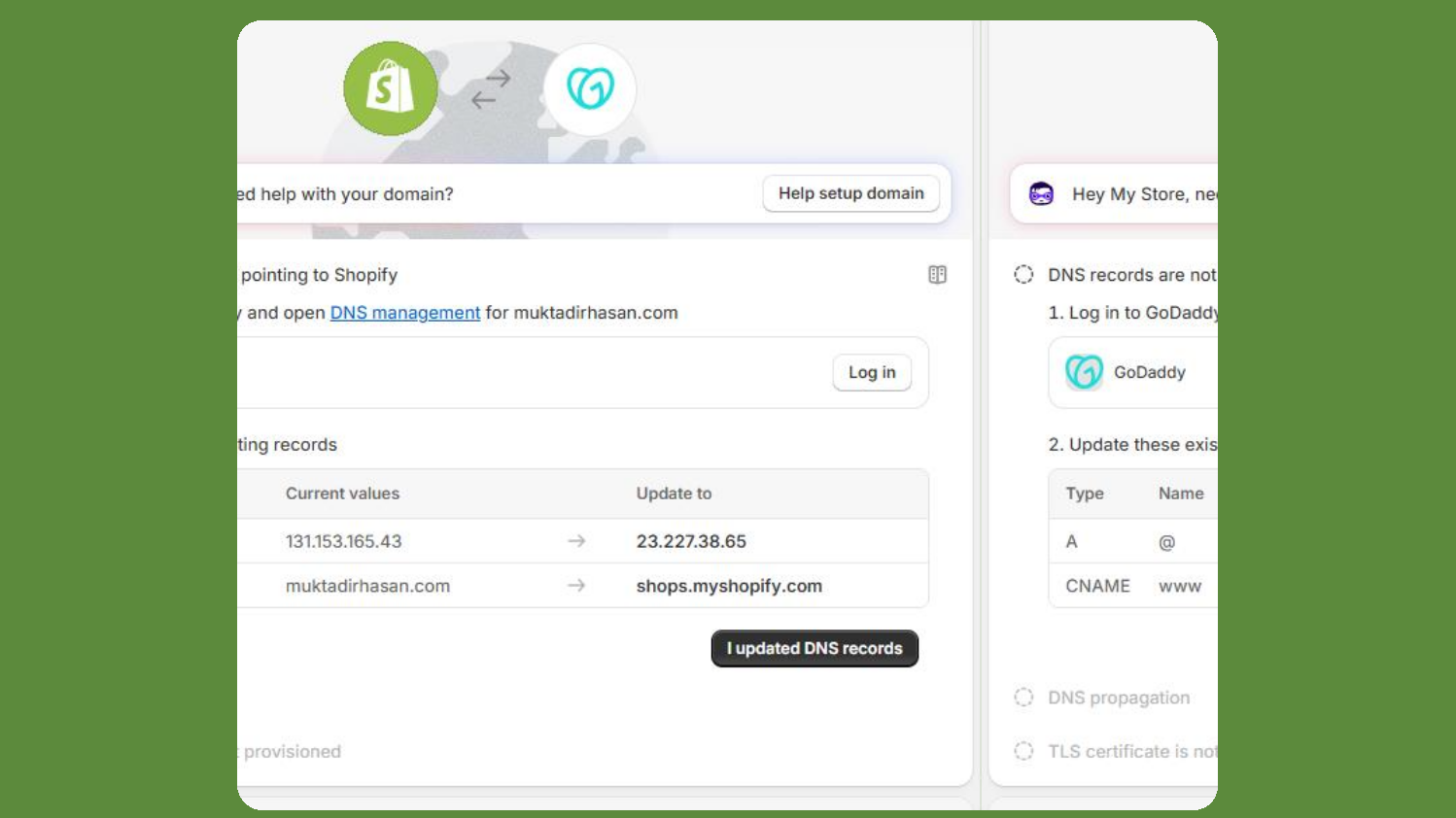
You’ll get the option to buy or connect a custom domain there, which involves updating DNS records. Get the domain either from Shopify or from a third party like GoDaddy, Namecheap, Cloudflare, etc.
Option 1: Buying a Domain Through Shopify (Recommended)
- In your Shopify admin, go to Settings > Domains
- Click ‘Buy new domain’. Search for your desired domain name and check if it’s available. Purchase the domain within Shopify.

Shopify automatically registers it, configures DNS, and issues an SSL certificate, making it instantly work with your store.
Option 2: Connecting an Existing Domain or Buy from a Third-party Provider
- In your Shopify admin, go to Settings > Domains, then click Connect existing.
- Type your domain name and click Next
- Update DNS at the domain provider
Choose a Theme and Customize Your Store
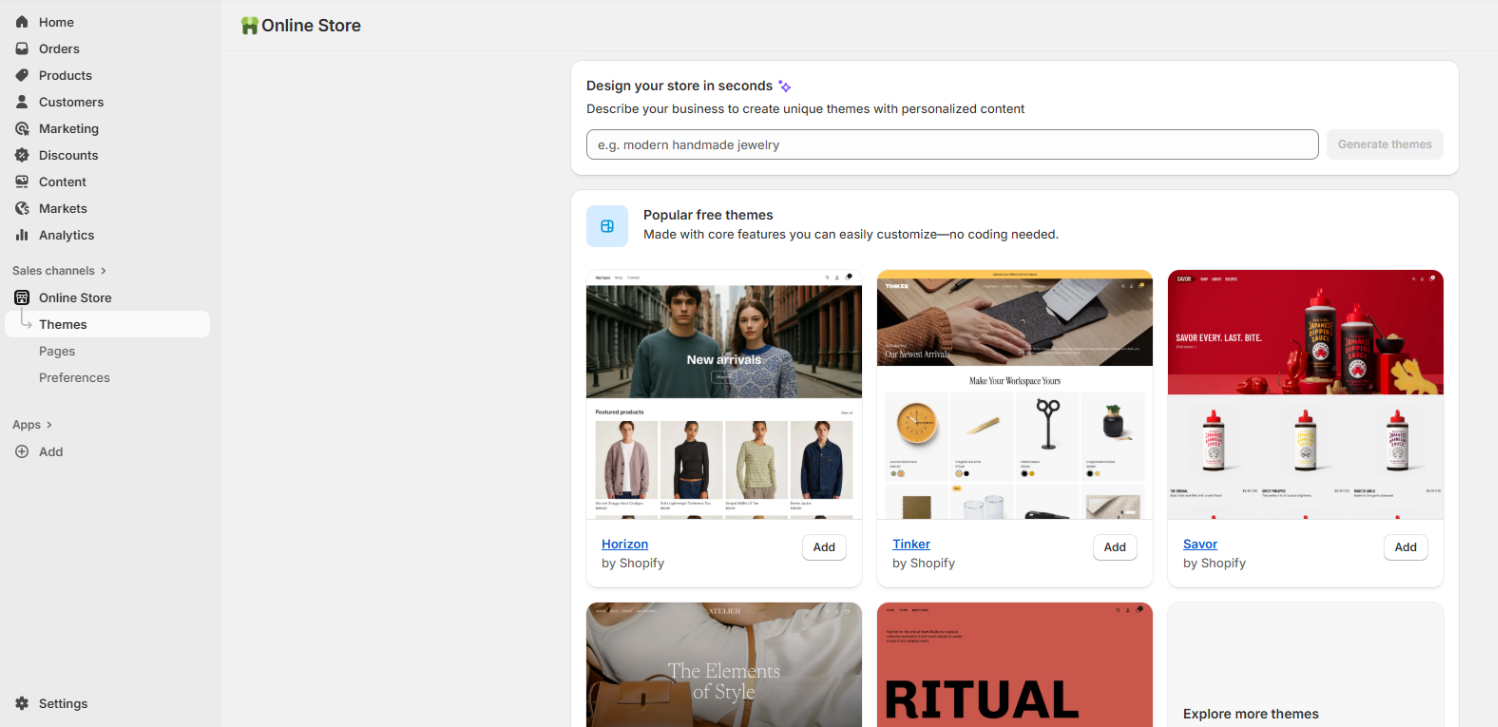
A theme determines how your store looks and feels. Shopify has free and paid themes pre-designed to build your online store. Select a fast and mobile-friendly theme, as most people view it on mobile phones today.
Customization is completely up to your decision. There are different levels of customization, depending on the look and feel you want for your store.
Here is a glimpse of what you can do with your theme:
Quick Theme Adjustments
Use the theme editor to adjust colors, fonts, logos, and layouts. Stick to one font style and two main colors for a clean look.
For example, you may want to select a preset from the Shopify Theme Store to adjust colors to your product class and category.
Block-based Modification
Most of the Shopify themes will allow you block-based editing. So, customization will not require any coding knowledge. Change any portion of the page as you want.
Advanced Customization
For more alteration and control, if you have coding knowledge, most of the Shopify themes are written with Liquid (Shopify’s open-source templating language). So, you can edit your theme code to make detailed changes to your store.
Add Products to Your Store
Products are the heart of your Shopify store. Go to the Products tab in your dashboard and click “Add Product” to get started.
However, I would advise you to be very careful and creative while adding products to your store. I’ve seen many e-commerce brands fail because of poor product listing. Get professional assistance if you need to from industry experts.
Here, I’m adding two basic and must-follow instructions for product listing:
High Quality Images
Customers cannot touch your products before they get them in their hands. So, they need to see clear pictures on your online store. Use high-resolution photos with a clean background.
Before you upload, use a free tool like TinyPNG to make your files “lightweight.” This ensures your website loads fast for people on mobile phones.
Compelling Titles & Descriptions
Titles should be clear and simple. Instead of “Blue Shirt,” try “Soft Organic Cotton Tee Shirt – Sky Blue.” There is another purpose behind it— SEO or GEO (Generative Engine Optimization) of your store.
In your descriptions, focus on the benefits. Don’t just list the features; tell the customer how the product will make their life better or solve a problem.
Try to identify your customers’ search intent and answer the questions in their minds.
Create Essential Pages
If you have a Shopify online store, you can create pages in the admin panel. Go to Online Store > Pages, click Add Page. Add page title and content, and save the page.
Develop all the pages that rarely change over time, e.g., Home Page, About Us, Contact Page, FAQs, Shipping & Return Policy, Terms & Conditions, etc.
Configure Shipping and Payment Settings
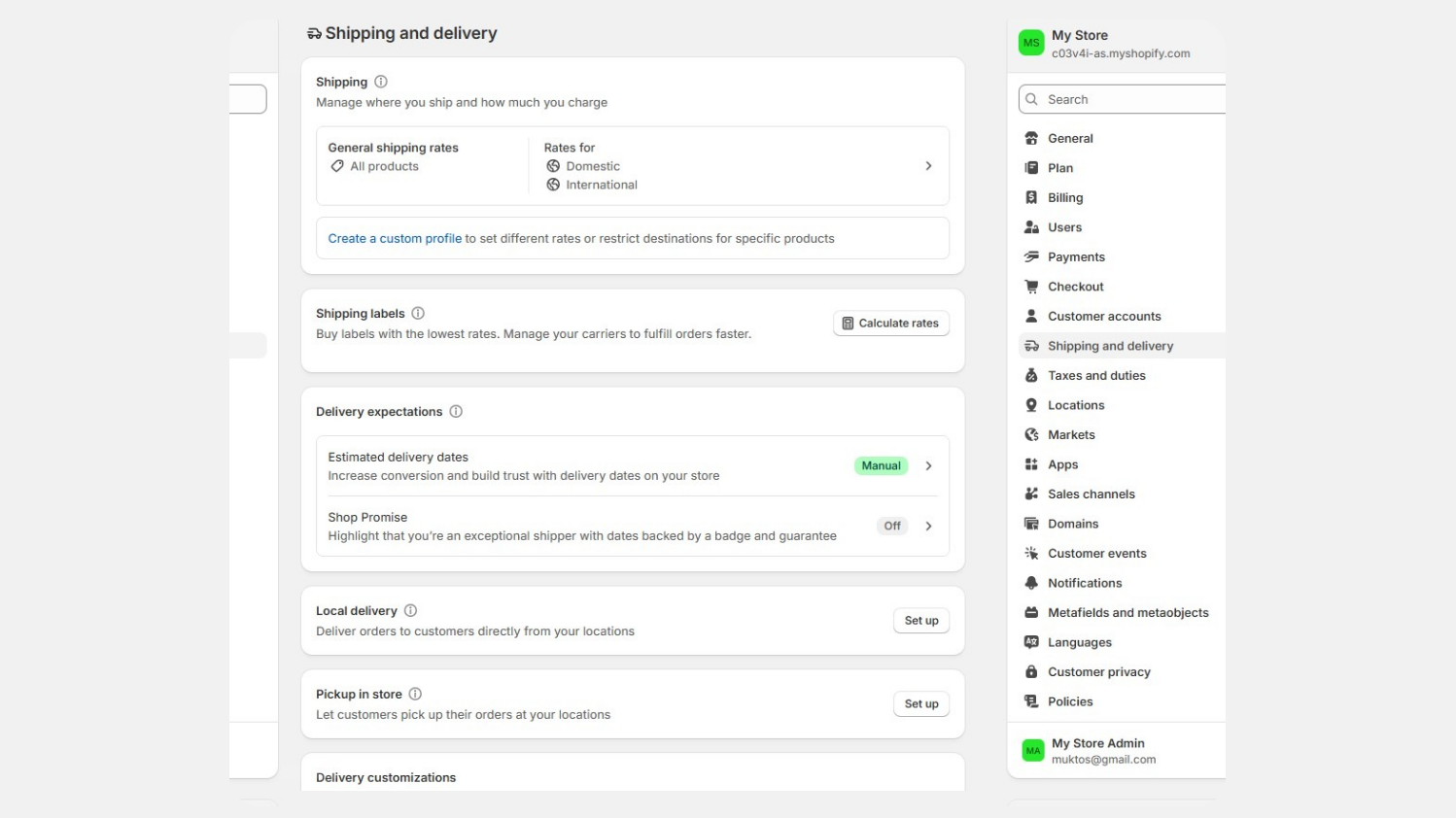
Based on your location and your target market, shipping and payment policies will differ. Set up shipping and fulfillment in the Shipping & Delivery page in Settings.
These settings will determine your shipping rates for domestic or international delivery.
When a customer purchases a product and opts for checkout, they can choose a payment option you activated in your payment settings. Let your customers pay through a trusted and convenient method.
Shopify Payment is an umbrella that allows you to receive payments through debit/credit cards, PayPal, Apple Pay, etc.
Set Up a Shopify Partner Account (Optional)
Shopify Partner account is an opportunity for developers, designers, and marketers to build and offer tools for store creation and earn revenue within the Shopify platform.
Consider this if you have expertise in any of the fields; otherwise, stick to your own store and earn by selling to your customers.
Test and Launch Your Online Store
In the final step, real professionals usually go through a rigorous test and trial. Depending on the scale of your store, you need to check all the functionality (payments, checkout, mobile-friendliness), performance (speed), and user experience before the launch.
When everything is functional and ready, make a test order to double-check the process from the product page to fulfilment. Finally, launch your store!
Manage and Maintain Your Shopify Account
After the launch, you can manage your Shopify account again by logging in to Shopify or from the store admin panel that is connected to your account.
Maintain everything in your Shopify account, primarily on these two pages:
- The General page contains settings for account information and admin preferences
- The Security page contains security settings. You can manage email and passwords, recovery codes, two-step authentication, etc.
Wrapping Up
Shopify account creation and store setup are step-by-step processes that do not require a high level of expertise in this field. Follow the guidelines, and it should be fine.
You’ll find additional information online. Shopify itself provides easy-to-follow guidelines for its users on the Shopify Help Center and community pages.
However, for professional help, hire an agency or a freelancer who will assist from the Shopify sign-up process to product listing to store maintenance.
FAQs
01. Can I create a Shopify store myself?
Answer: Absolutely, hundreds of solo entrepreneurs set up and configure their Shopify store themselves without any professional assistance. And you don’t really need expertise in this field to do it.
Follow my guidelines, search online for additional information if you need to, and start building your online store.
02. Do I need a custom domain for Shopify account creation?
Answer: In short, yes. Everyone chooses a custom domain for their store because the domain name is your store’s identity. You will use this domain for branding, to let your customers find your store.
The easiest way to get a domain for your Shopify sign-up process is to buy it within the Shopify admin. It gets automatically configured and connected with your store.
However, you can buy it from a third-party provider or connect to an existing one if you. In that case, you need to manually update DNS records (A record to Shopify’s IP, CNAME to shops.myshopify.com) to point to your store.
03. Is a Shopify theme and a template the same thing?
Answer: No, templates and themes are not the same. A Shopify theme controls the overall design, experience, and functionality of your store. A template, in general, is a layout of one page of the theme that shows where the title, content, footer, etc. will be placed.
04. How much capital do I need to start my Shopify store?
Answer: The Shopify account creation and store setup are free (3-day trial period). So you can start the Shopify sign-up process completely out of cost.
However, after the trial period, you will need to purchase a plan that suits your business scale and budget.
The overall cost of a Shopify business is difficult to estimate. It depends on your niche, business plan, marketing strategy, business location, scale of operation, and many other small factors.
04. What is the Shopify Partner account? Why do I need it?
Answer: First of all, most new store owners don’t need a Partner account. This is for expert developers, designers, marketers, etc., who can build tools and offer them to Shopify users. They can earn by developing the tools.
If you aren’t looking to build software or offer professional services to other merchants, it’s not compulsory.
05. How do I deactivate my Shopify account?
Answer: After the launch, if you ever want to deactivate your account, go to Settings > Plan, and click Cancel plan or Cancel trial (if you are using the trial). Then follow the prompts and confirm by typing your password.
Don’t worry, Shopify will keep your data stored for two years for easy reactivation.
06. How long can I pause my Shopify store?
Answer: You can pause your store indefinitely on Shopify. It will cost you less (around $9/month) and keep your store hidden, but you will be able to access the admin and work in the background.
If you opt for a pause, the account will remain paused for three months without any cost. After that, it will automatically be converted into the Pause and Build plan.
When you are ready to reopen your store, you need to select a new plan as your old plan is not valid anymore.